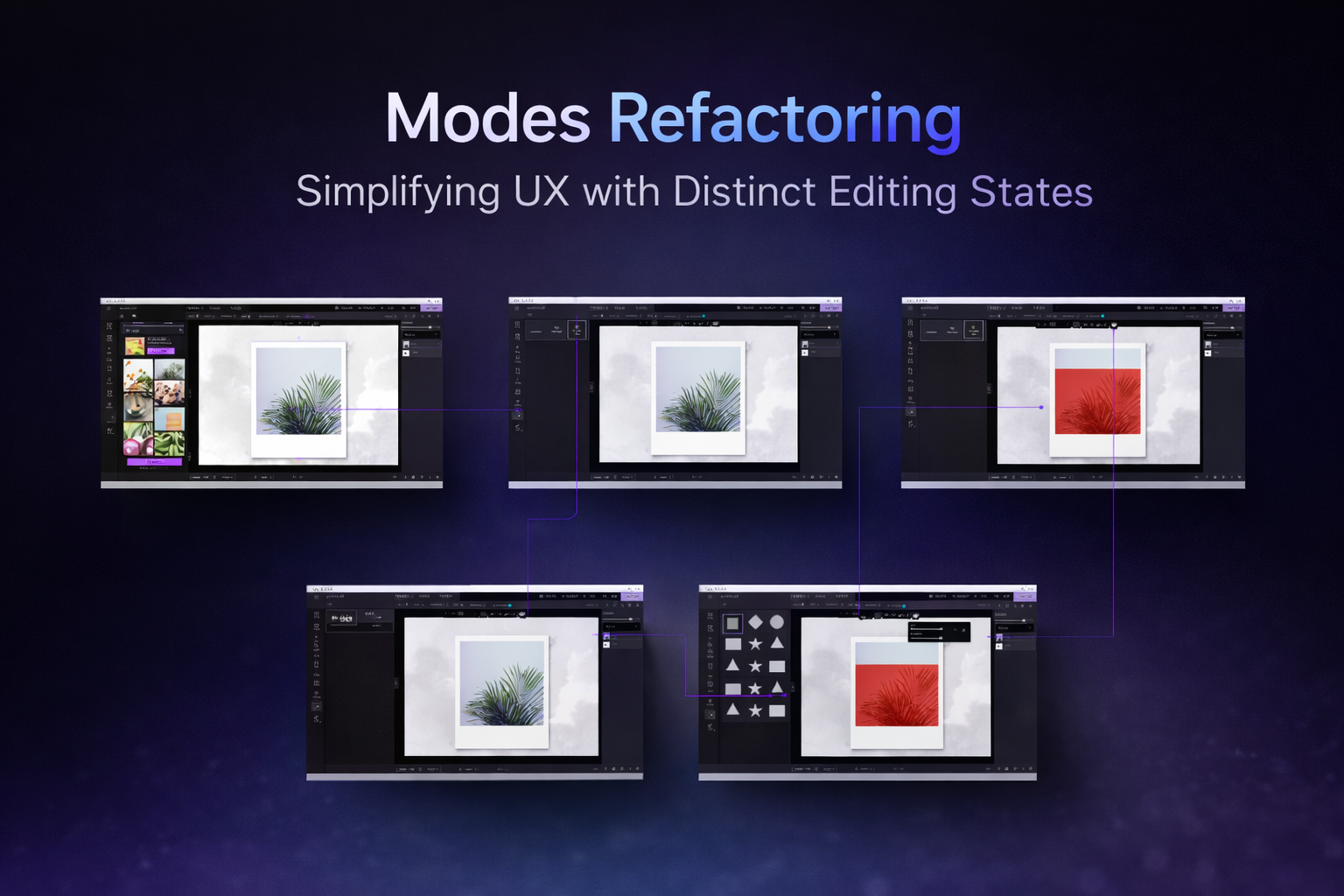
Modes Refactoring: Redesigning the Editing Experience in Picsart Windows
Overview
Picsart Windows editor was built around a mode-based architecture, where users had to switch between separate sections (e.g., Brushes, Fonts, Images) to perform different actions.
This created a fragmented experience and slowed down editing workflows.
Objective: Redesign the interaction model to reduce mode switching, improve editing speed, and create a more scalable and intuitive system.
Problem
The existing experience introduced several usability challenges:
- •Frequent switching between modes interrupted the editing flow
- •Tools were separated from the context in which they were used
- •Users had to navigate the interface instead of focusing on editing
- •Increased cognitive load, especially for new users
The system was structured around tools and features rather than user actions.
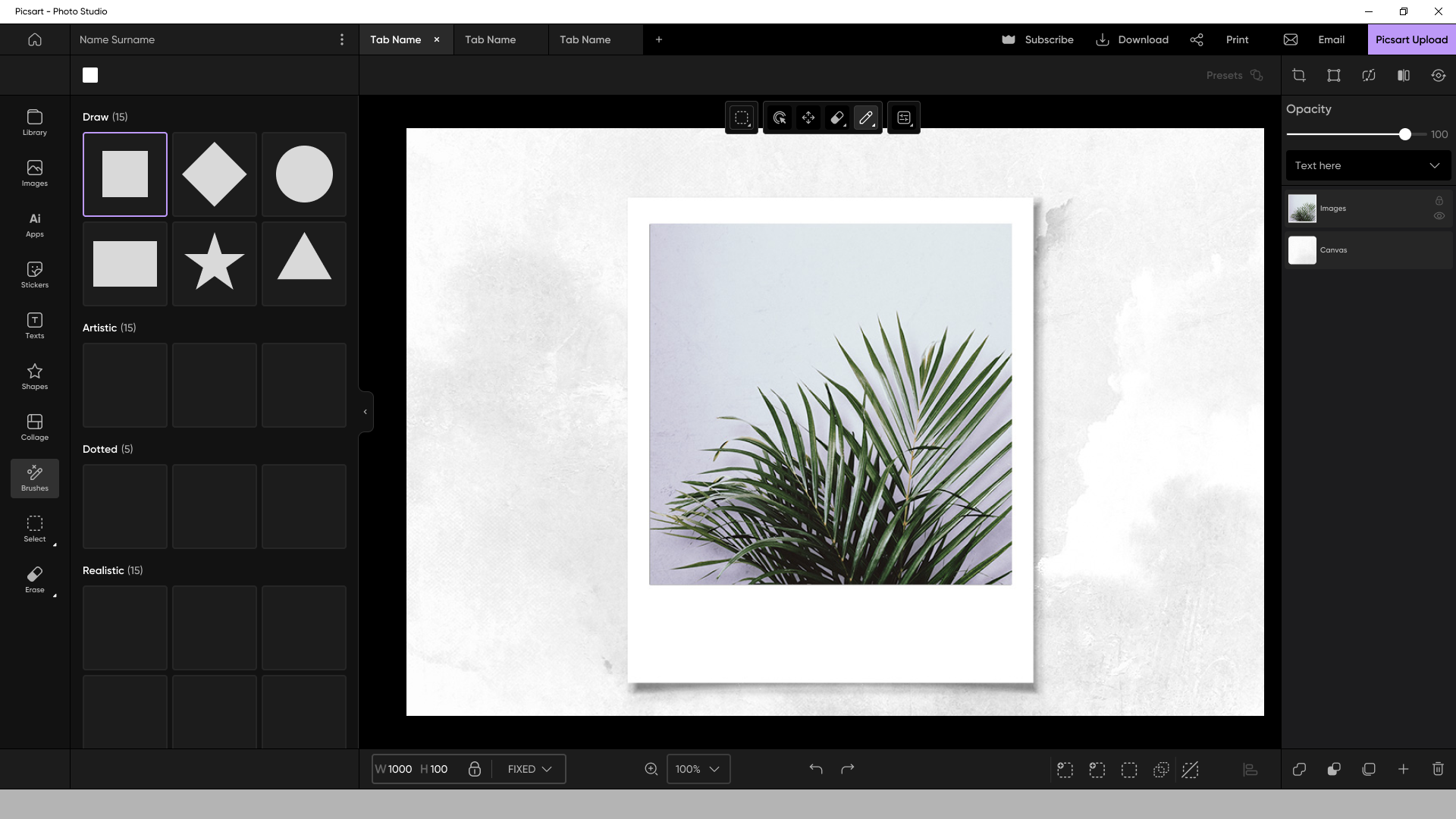
Previous mode-based interface requiring users to switch between different sections
Role
- →Product & UX Designer
- →Defined interaction model and tool behavior
- →Designed user flows and UI
- →Collaborated with product and engineering teams
Approach
The redesign focused on shifting from a mode-based system to a contextual, tool-driven interaction model. Instead of navigating between different sections, users would access tools directly within the editing context.
Solution
Introduced a floating contextual menu within the editor, enabling users to perform actions without leaving object mode.
- •Select
- •Object Select
- •Move
- •Draw
- •Erase / Restore
- •Settings (contextual dropdown)
This allowed users to stay focused on the canvas and perform actions in place.
Interaction Design
Default State
- •On editor open with no selection → Select Tool is active
- •Settings is disabled
- •Other tools remain inactive until selected
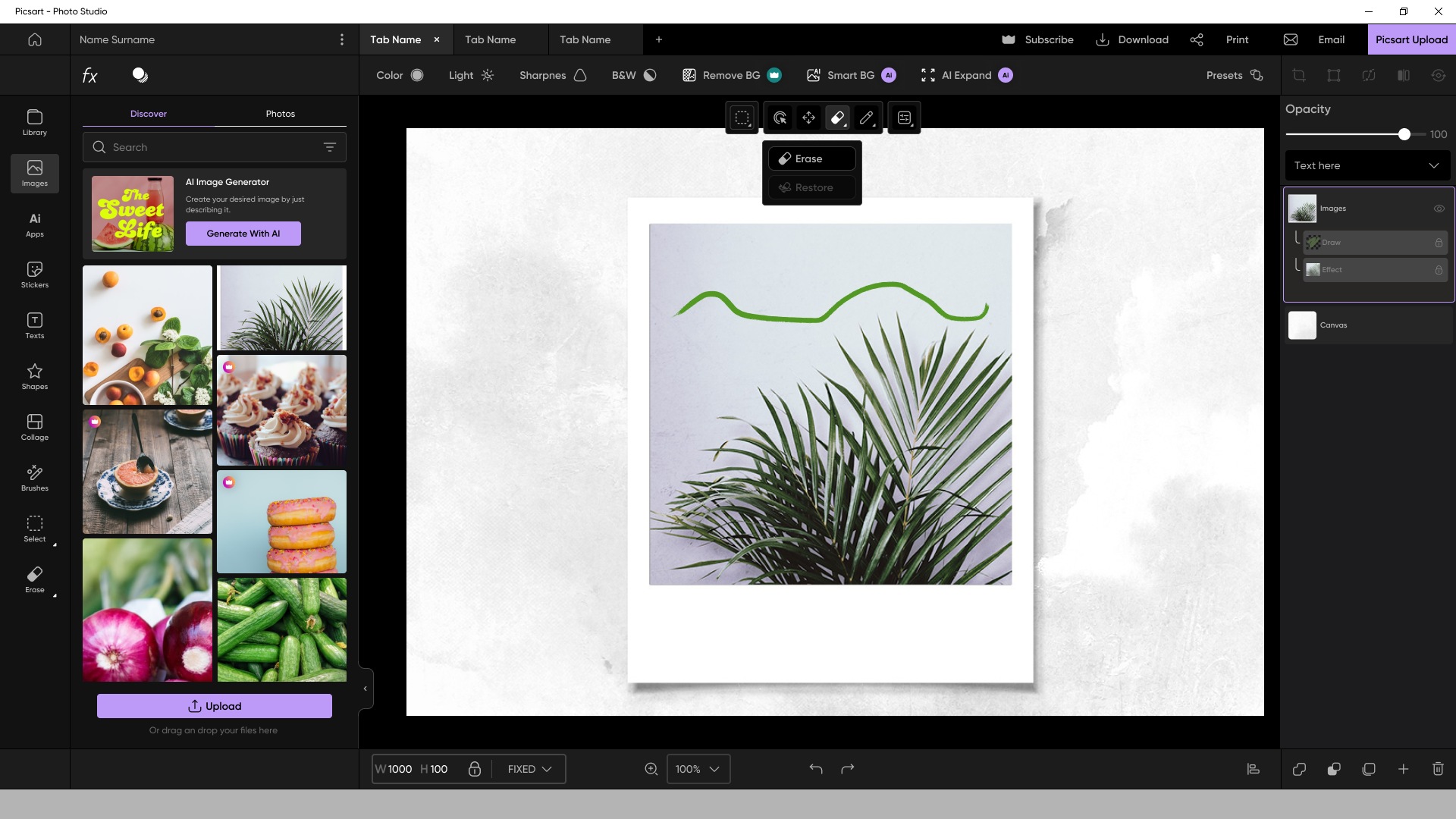
Draw tool with contextual toolbar
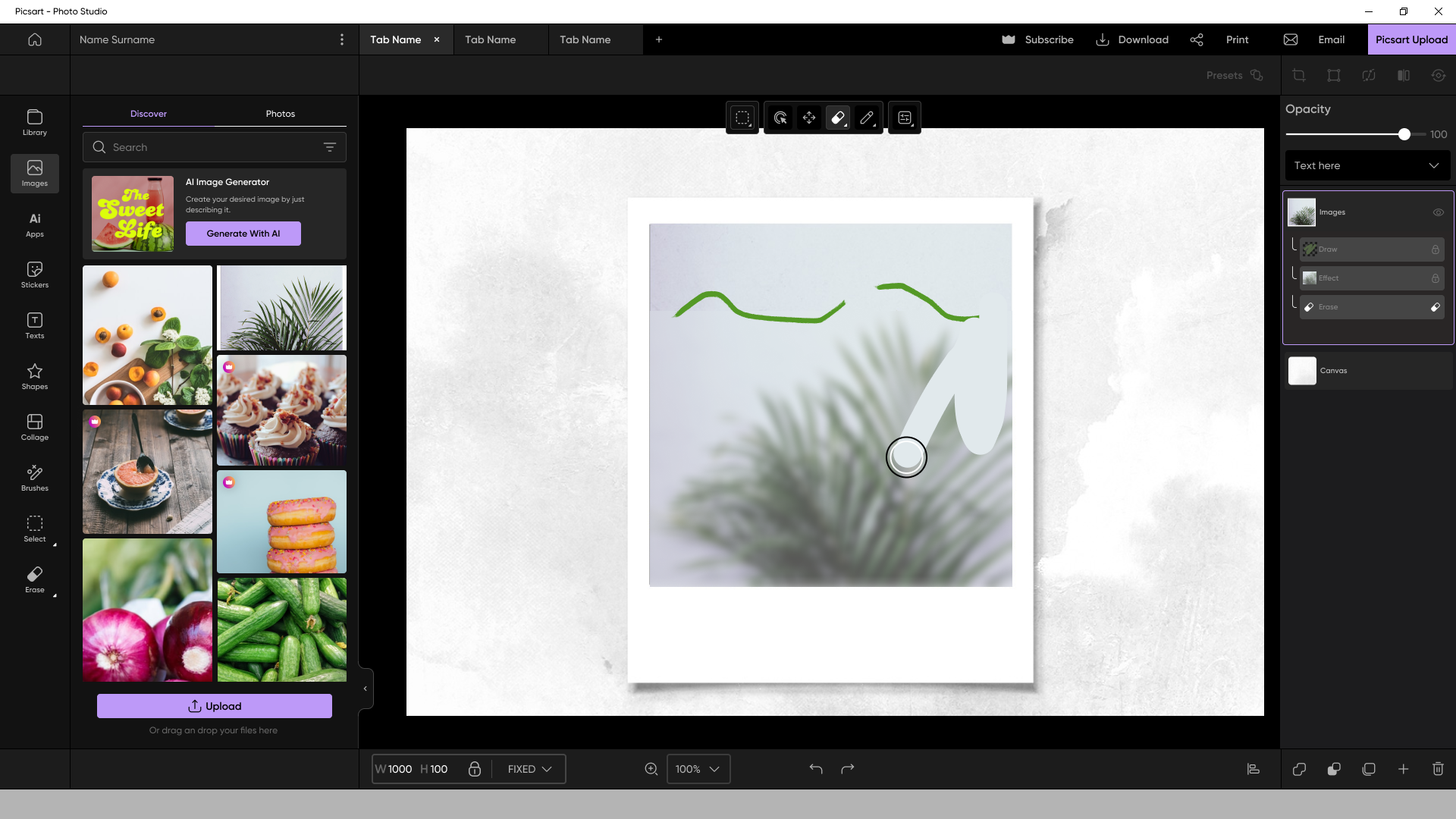
Object selection with contextual menu
Contextual Behavior
- •Tools activate only when explicitly selected
- •Settings dynamically updates based on the active tool
- •UI adapts to user context rather than requiring navigation
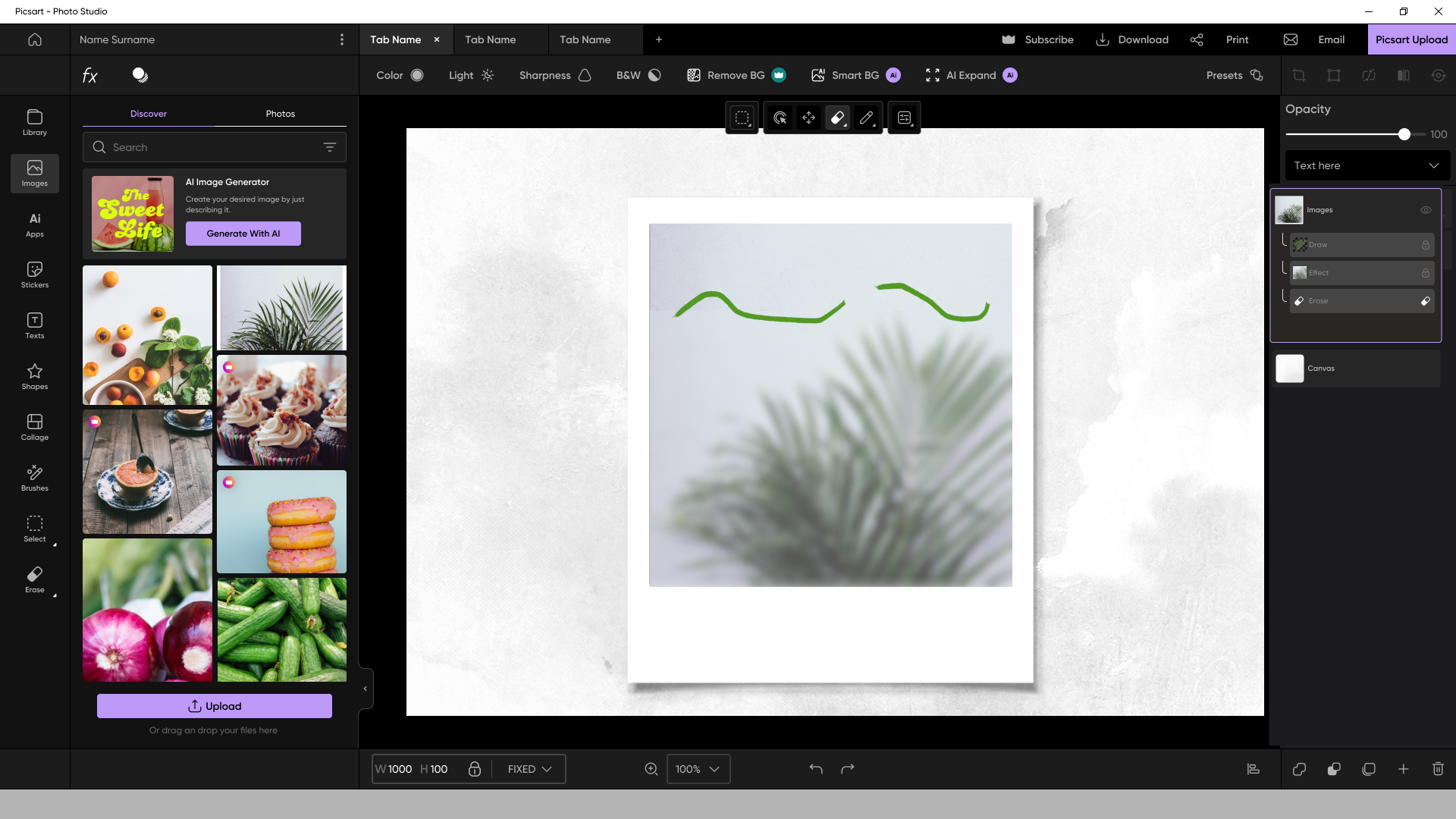
Settings menu dynamically updates based on selected tool
Cross-Object Rules
- •Draw and Erase work across all object types
- •Selection works only on images and stickers
- •Unsupported actions trigger inline guidance
Edge Cases
- •Selection on unsupported layers (e.g., text, shapes) shows guidance message
- •Erase on draw layers is permanent (no masking system)
- •Tool switching preserves editing context
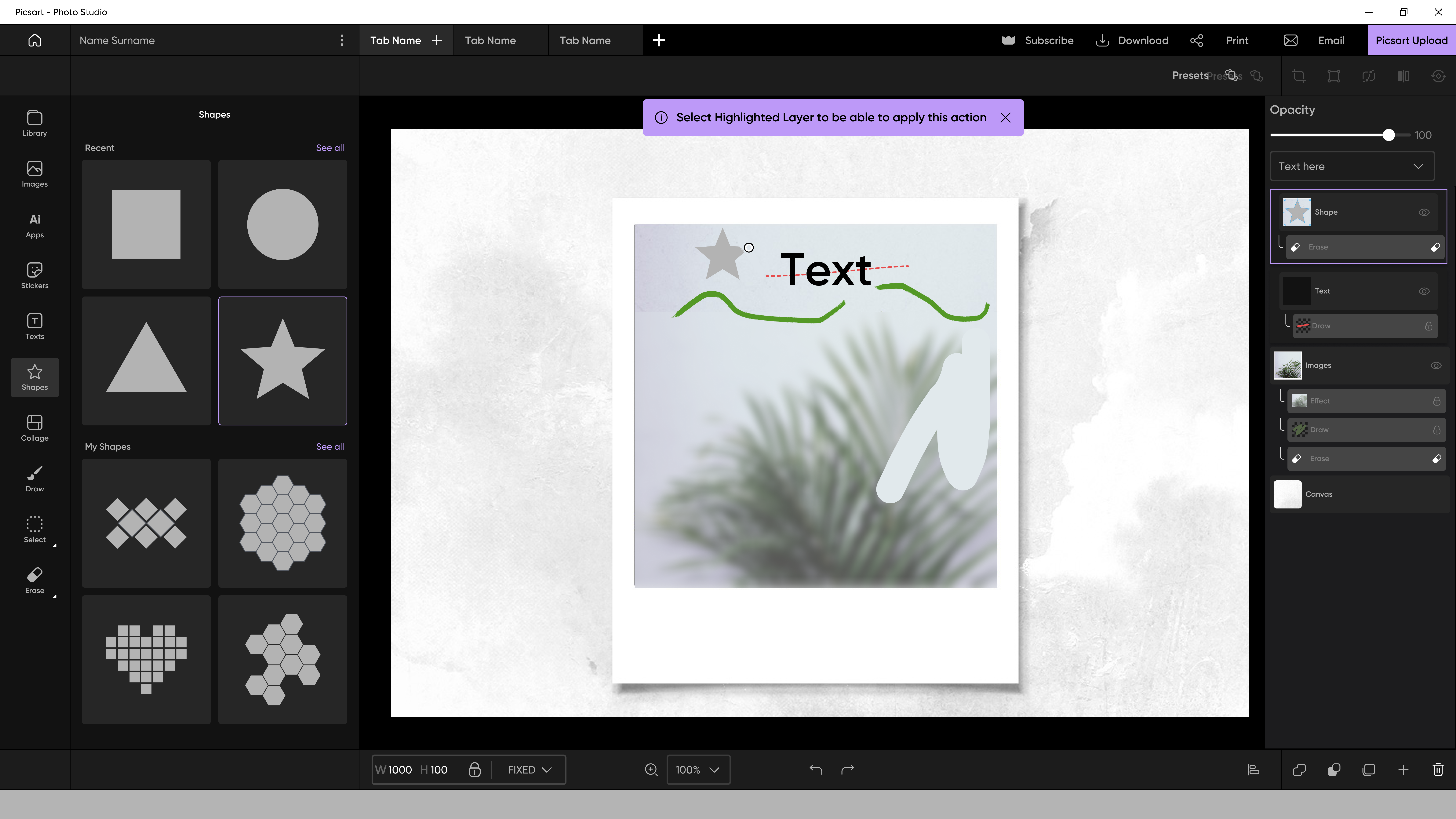
Inline guidance message when attempting unsupported actions
Data-Informed Decisions
Tool prioritization was informed by usage data analysis, including:
- •Tool open vs apply rates
- •Frequency of use across drawing and selection modes
- •Most used effects, textures, and actions
- •A small subset of tools accounted for the majority of interactions
- •Some visible tools had low actual usage
- •Selection tools (e.g., lasso, magic) showed higher engagement
- •Prioritized high-usage tools in the floating menu
- •Reduced exposure of rarely used options
- •Structured dropdowns based on real usage patterns
Impact
- ✓Reduced friction caused by mode switching
- ✓Improved editing speed and workflow continuity
- ✓Increased clarity of tool behavior
- ✓Improved discoverability of frequently used tools
- ✓Established a scalable foundation for future editor features